Multi-Container Orchestration with Docker Compose
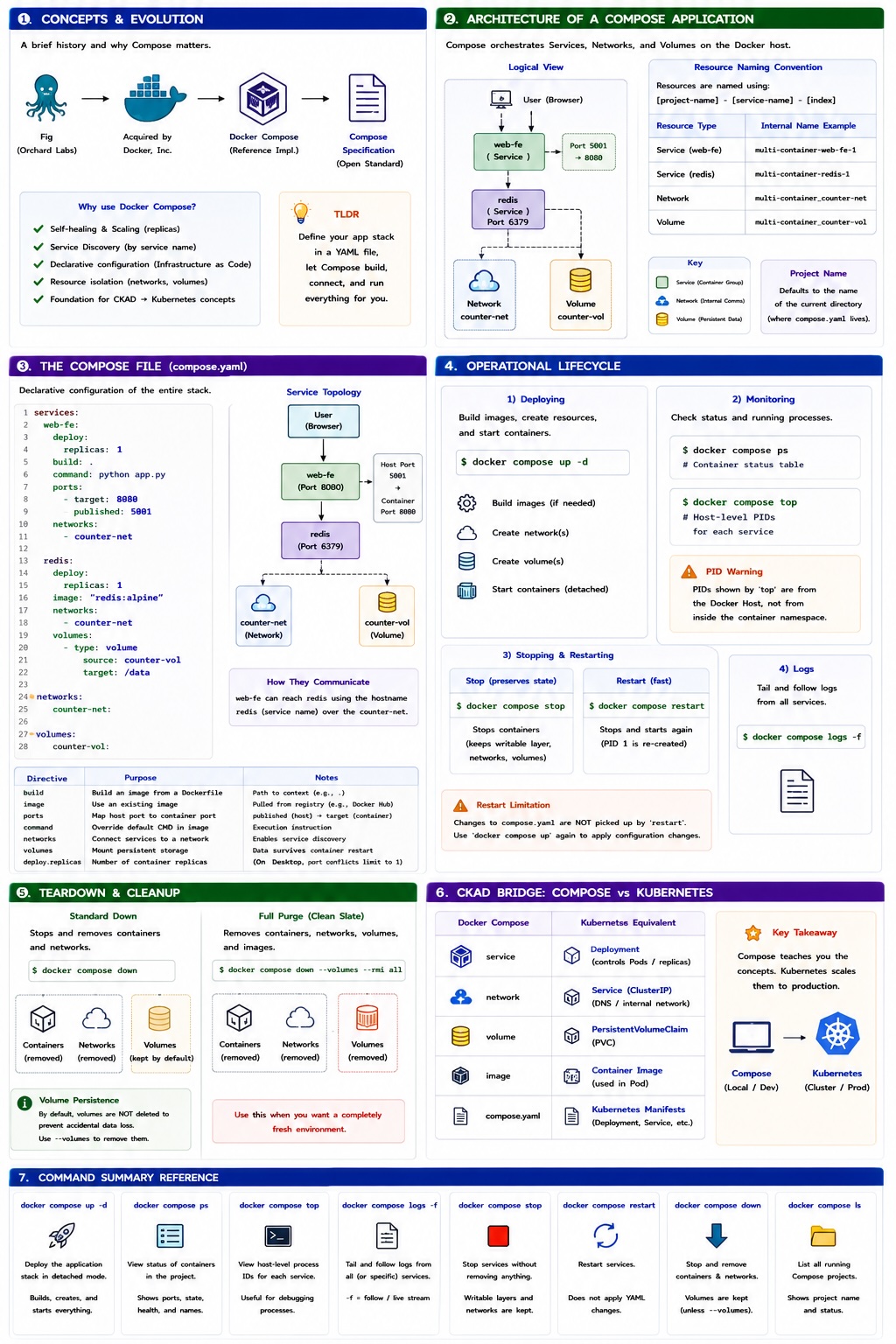
Docker Compose is a tool for defining and running multi-container applications. Instead of managing individual containers via complex CLI commands, Compose allows you to use a declarative YAML file to manage your entire application stack as a single unit.
1. Concepts and Evolution
The Journey from Fig to Compose
Originally, a tool called Fig (developed by Orchard Labs) revolutionized Docker by allowing users to define multi-container microservices in a simple YAML file. Docker, Inc. acquired Orchard Labs and rebranded Fig as Docker Compose.
Today, Compose is driven by the Compose Specification, an open community-led standard. While Docker Compose is the reference implementation, the specification ensures consistent governance across different platforms.
Why Use Compose?
While primarily used for development, testing, and CI/CD environments, Compose introduces concepts that are foundational for the CKAD (Certified Kubernetes Application Developer) exam:
- Self-healing & Scaling: Provides a simplified view of how microservices benefit from these patterns.
- Service Discovery: Allowing containers to communicate via service names rather than IP addresses.
- Declarative Configuration: Defining the "desired state" of your infrastructure in code.
- Resource Isolation: Automatic creation of dedicated networks and volumes.
2. Architecture of a Compose App
When you deploy an application, Docker Compose parses your YAML file and orchestrates the creation of several objects: Services, Networks, and Volumes .etc
Resource Naming Conventions
Docker assigns a Project Name based on the directory name of your build context. It then names resources using the pattern: [project-name]-[service-name]-[index].
| Resource Type | Internal Name Example |
|---|---|
| Service | multi-container-web-fe-1 |
| Network | multi-container_counter-net |
| Volume | multi-container_counter-vol |
It names resources using a predictable pattern to avoid conflicts.
3. The Compose File (compose.yaml)
Compose looks for a file named compose.yaml or compose.yml by default.
Standard Filenames
Modern Docker standards prefer compose.yaml. If you use a custom name like prod.yaml, you must specify it using the -f flag: docker compose -f prod.yaml up.
Sample Application Configuration
The following example defines a web frontend and a Redis backend.
services:
  web-fe:
    deploy:
      replicas: 1
    build: .
    command: python app.py
    ports:
      - target: 8080
        published: 5001
    networks:
      - counter-net

  redis:
    deploy:
      replicas: 1
    image: "redis:alpine"
    networks:
      - counter-net
    volumes:
      - type: volume
        source: counter-vol
        target: /data

networks:
  counter-net:

volumes:
  counter-vol:
graph TD
    subgraph "Docker Host"
    A[Compose Project] --> B(Service: web-fe)
    A --> C(Service: redis)
    B --- D((Network: counter-net))
    C --- D
    C --- E[[Volume: counter-vol]]
    end

    User((User)) -->|Port 5001| B
Key Directives Explained
services: The mandatory top-level key defining the application components.build: .: Directs Docker to build an image from the Dockerfile in the current directory.image: Specifies an existing image to pull (e.g., from Docker Hub).ports: Maps the container port (target) to the host port (published).command: The execution instruction.networks: Connects containers to a shared network. This enables Service Discovery, allowing web-fe to reach redis simply by using the hostname redis.volumes: Mounts a persistent volume. This ensures data is not lost if the container is stopped or deleted.deploy.replicas: Defines the number of containers.
On Docker Desktop, you can usually only run 1 replica for services that bind to a specific host port (e.g., 5001), as multiple containers cannot bind to the same host port simultaneously.
4. Operational Lifecycle
Deployment and Management
The up command is the primary way to deploy. It builds images, creates networks/volumes, and starts containers.
Check the health and processes of your multi-container stack.
# List container status, ports, and state
docker compose ps
# List processes running inside each container (Host PIDs)
docker compose top
Process IDs (PID)
The PID numbers returned by docker compose top are the PIDs as seen from the Docker Host, not from within the container's isolated namespace.
Stop the app without deleting resources, or perform a restart.
# Stop containers (preserves container state)
docker compose stop
# Restart stopped containers
docker compose restart
Restart Limitation
docker compose restart does not pick up changes made to the compose.yaml file. To apply configuration changes, you must run docker compose up again (which performs a recreation of affected services).
5. Teardown and Cleanup
Stops and removes containers and networks.
Persistence of Volumes
By default, docker compose down does not delete volumes. This is a safety feature to prevent accidental data loss. You must explicitly use the --volumes (or -v) flag to remove them.
6. CKAD Bridge: From Compose to Kubernetes
For those transitioning to Kubernetes, use the following mental model to map Compose concepts to K8s objects:
| Docker Compose | Kubernetes Equivalent |
|---|---|
service | Deployment (controls Pods/Replicas) |
network | Service (DNS/ClusterIP) |
volume | PersistentVolumeClaim (PVC) |
image | Container image inside a Pod |
compose.yaml | Kubernetes manifests (multiple YAML files or Helm Charts) |
7. Command Summary Reference
| Command | Description |
|---|---|
docker compose up -d | Deploy the application stack in detached mode |
docker compose ps | View the status of containers in the current Compose project |
docker compose top | View host-level process IDs for each service |
docker compose logs -f | Tail and follow logs for all services in the stack |
docker compose stop | Stop services without removing containers or networks |
docker compose down | Stop and remove containers, networks, and related resources |
docker compose ls | List all running Docker Compose projects on the host |