🐳 Mastering Docker Images: The Comprehensive Guide
The Image Concept: Blueprints for Runtime
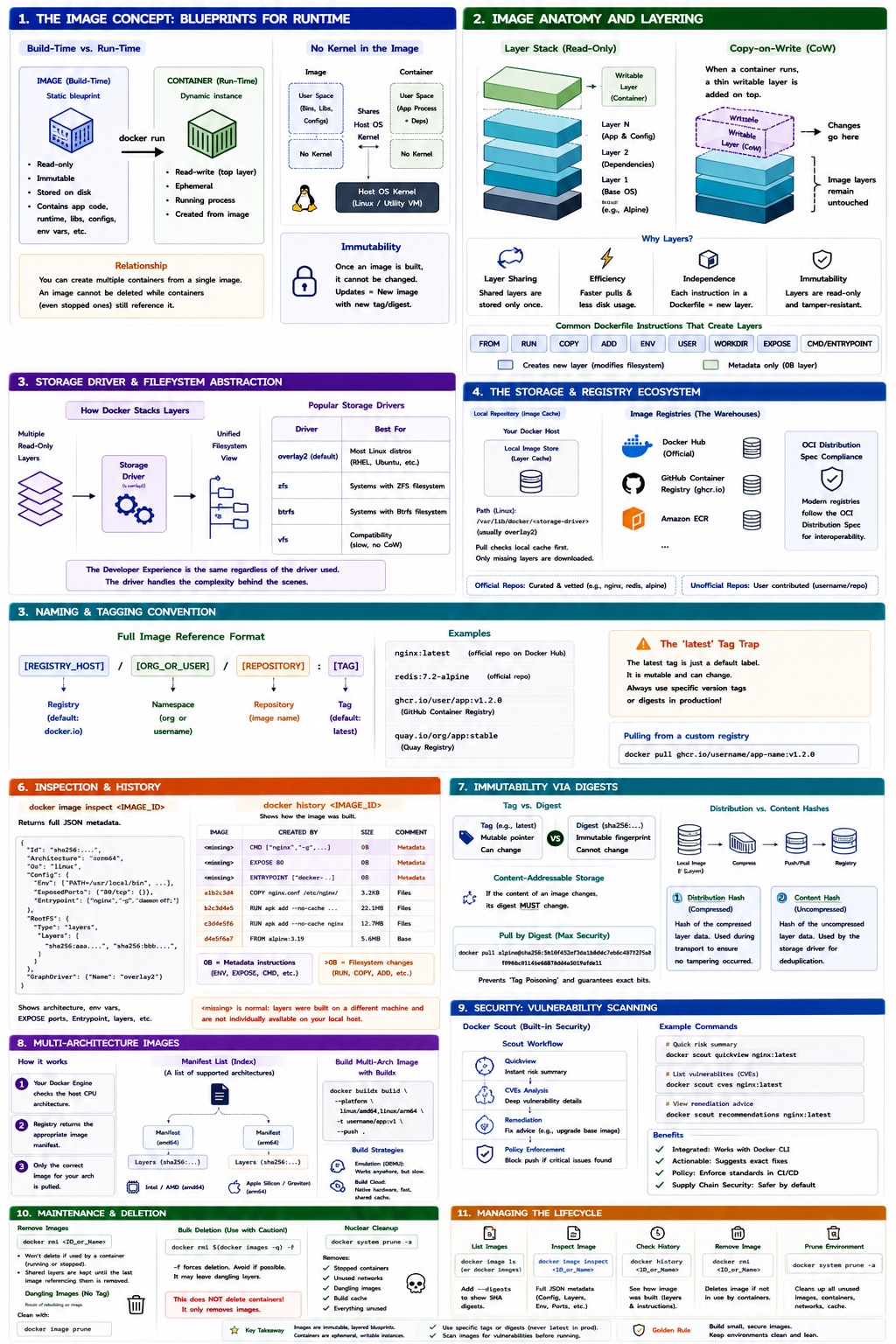
A Docker image is a read-only, immutable package containing everything required to run an application: code, runtime, system libraries, environment variables, and config files.
The Build-Time vs. Run-Time Distinction
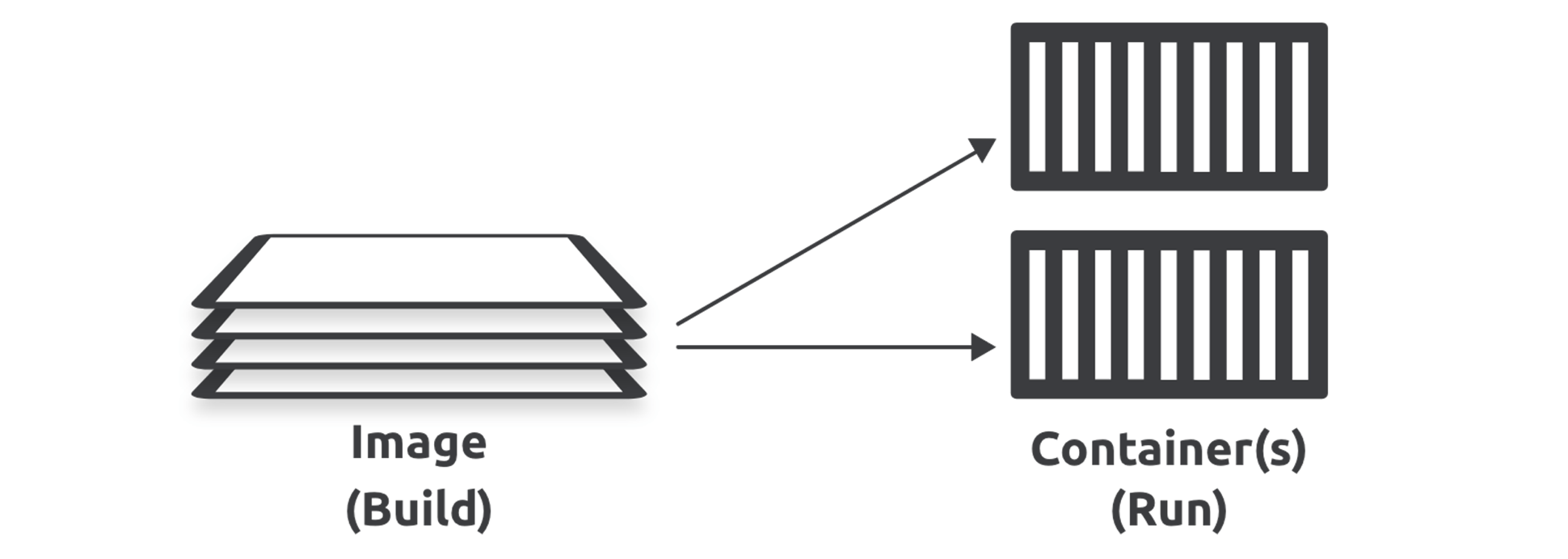
- Image (Build-Time): A static blueprint stored on disk.
- Container (Run-Time): A dynamic, living instance of an image.
- Relationship: You can instantiate multiple containers from a single image. Once a container is running, it is "bound" to its parent image. You cannot delete an image while containers (even stopped ones) are still referencing it.
The "No Kernel" Architecture
Images are remarkably small because they lack an OS Kernel.
- Containers share the Host OS Kernel (Linux or the lightweight utility VM on Windows/macOS).
- The only OS-related components in an image are Filesystem objects (bins, libs, configs).
Immutability
Once an image is created, it cannot be changed. Updates are made by creating a new image with a new version tag or digest.
Image Anatomy and Layering
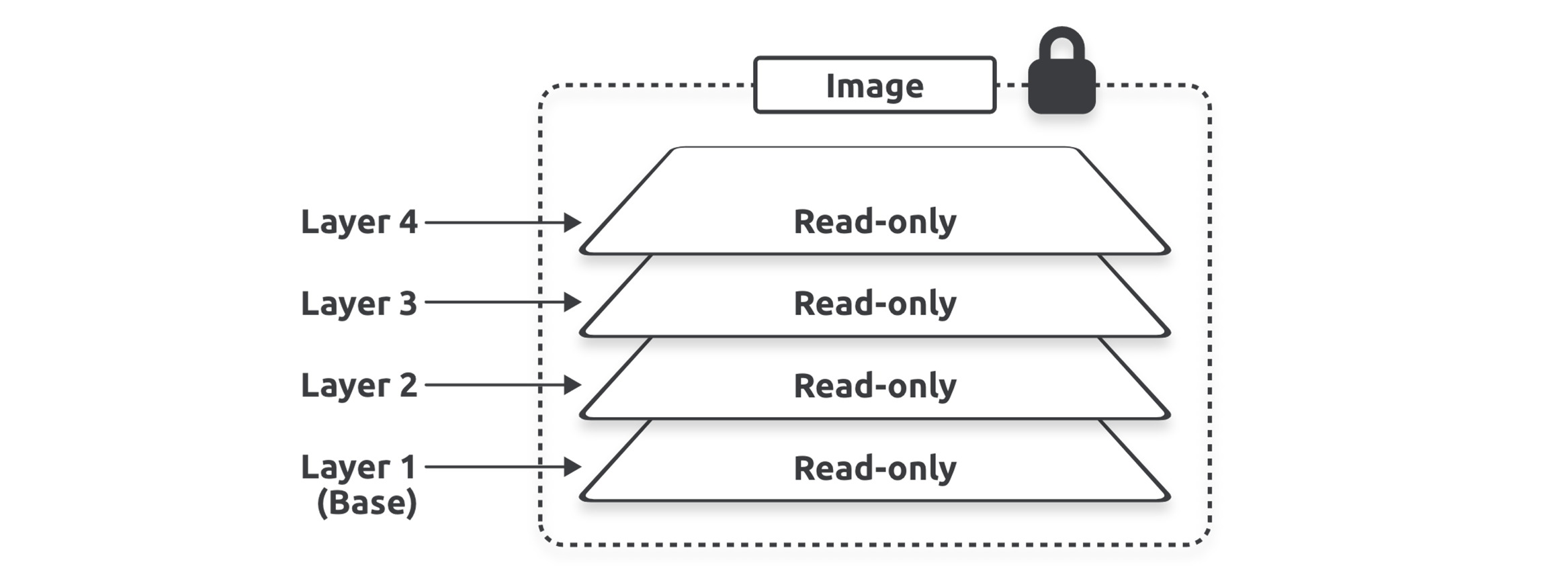
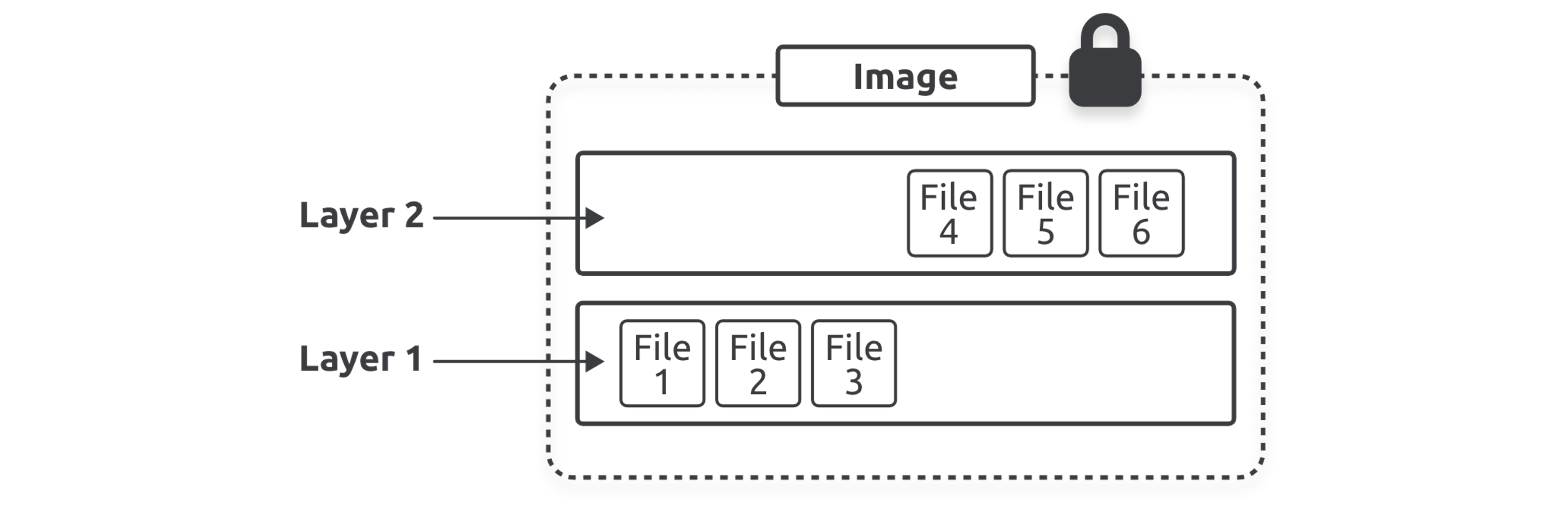
Docker creates images by stacking independent, read-only layers. This "stack" is presented as a single, unified object through a Union File System (UnionFS).
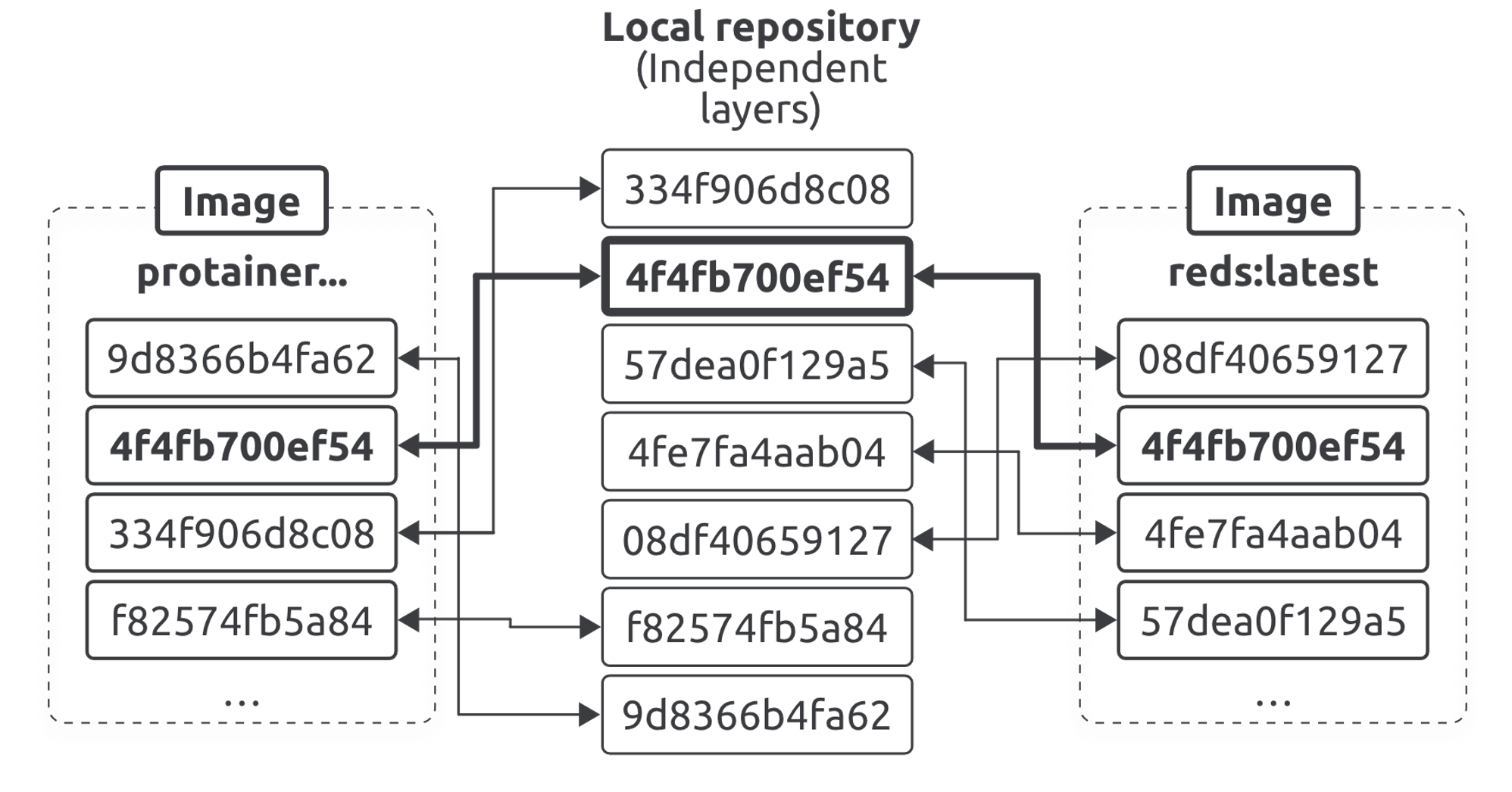
- Efficiency through Sharing: If multiple images share a base layer (e.g.,
alpine), Docker only stores and pulls that layer once. - Layer Composition: Every command in a
Dockerfile(likeRUN,COPY,ADD) creates a new layer. - Copy-on-Write (CoW): When a container starts, Docker adds a thin Writable Layer on top of the image. Any changes made during execution are stored here, leaving the underlying image pristine.
| Component | Description |
|---|---|
| Base Layer | Usually a minimal OS (e.g., Alpine, Ubuntu). All images start here. |
| Stacked Layers | Each instruction in a Dockerfile (RUN, COPY, ADD) creates a new layer. |
| Layer Sharing | Docker uses Content-Addressable Storage. If two images use the same base layer, Docker only stores one copy on disk. |
| Copy-on-Write (CoW) | When a container starts, Docker adds a thin Writable Layer on top. Changes are written here, while the underlying image layers remain untouched. |
The Storage Driver & Filesystem Abstraction
Docker uses storage drivers to stack these layers and present them as a unified filesystem.
- The Industry Standard: Almost all modern Docker setups use the
overlay2driver. - Alternative Options: Depending on the host OS and requirements, Docker also supports
zfs,btrfs, andvfs. - The Abstraction Layer: Regardless of which storage driver is used (the "how"), the developer and user experience remain identical (the "what"). The driver handles the complexity of merging layers into a single file tree seamlessly.
Storage and Registries
The Local Repository (Image Cache)
- Linux: Typically found at
/var/lib/docker/<storage-driver>(usuallyoverlay2). - Desktop: Stored within the managed Docker Desktop VM.
- Mechanics: Pulling an image checks your local cache first. Docker only downloads layers that are missing from your local repository.
Image Registries
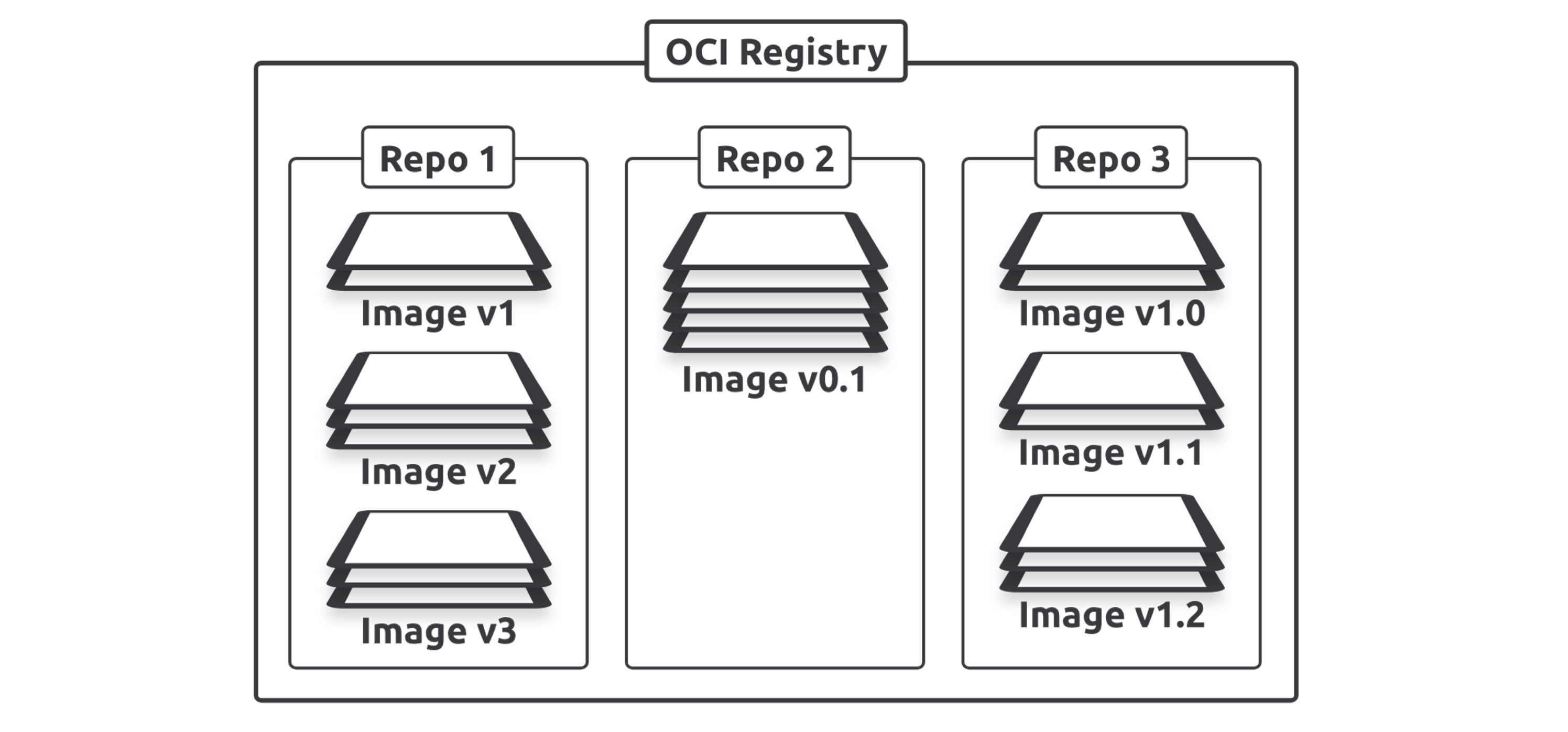
Registries are centralized warehouses for images.
-
OCI Compliance: Modern registries implement the OCI Distribution-Spec, ensuring interoperability across different container engines.
-
Official vs. Unofficial:
- Official: Curated and vetted by Docker and vendors (e.g.,
redis,nginx). They reside at the root of the Docker Hub namespace. - Unofficial: User-contributed. They require a prefix:
username/repository.
- Official: Curated and vetted by Docker and vendors (e.g.,
Naming and Tagging
Naming Convention
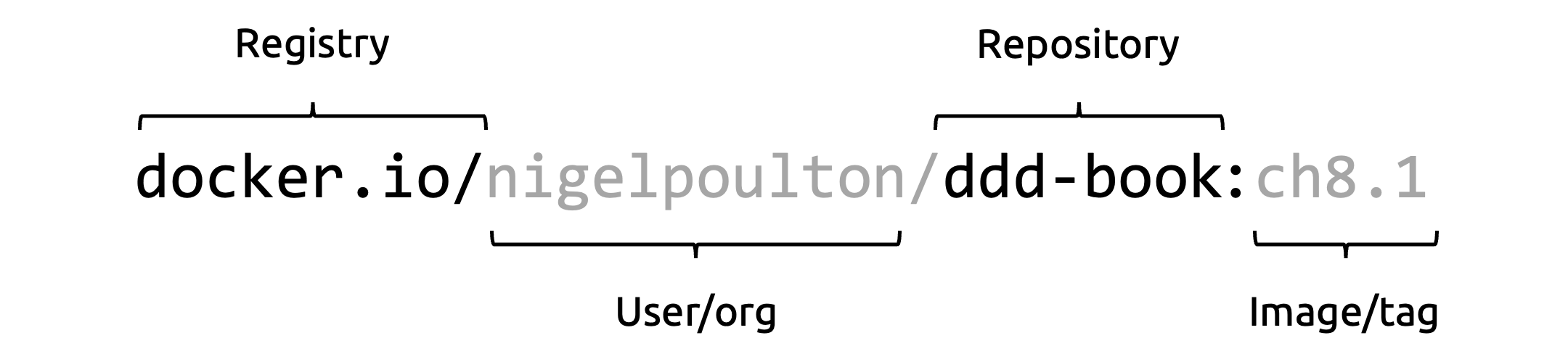
A fully qualified image name follows this structure: [REGISTRY_HOST]/[ORG_OR_USER]/[REPOSITORY]:[TAG]
- Default Registry:
docker.io(Docker Hub). - Default Tag:
latest. - Official Repos: These live in the top-level namespace (e.g.,
redis,nginx,alpine) and are vetted for security.
# Pulling from a custom registry (GitHub Container Registry)
docker pull ghcr.io/username/app-name:v1.2.0
[!WARNING] The
latestTag Trap: Thelatesttag is just a default label. It is mutable, meaning the image it points to can change. In production, always use specific version tags or digests for reproducibility.
Image Inspection and History
docker image inspect
Provides the full JSON metadata of an image, including the RootFS (a list of all layer SHA256 hashes). Shows high-level metadata (Architecture, OS, Config, Environment variables).
docker history
Shows how the image was built.
- Metadata Instructions: Commands like ENV, EXPOSE, and CMD add metadata but create 0B layers.
- Filesystem Instructions: RUN, COPY, and ADD create layers that consume disk space.
Note: In 2026, many layers in docker history appear as <missing>. This is normal; it simply means those layers were built on a different machine (e.g., the official build server) and are not individually manageable on your local host.
Immutability via Digests
Tags are "pointers" and can be changed. Digests are cryptographic SHA256 hashes of the image's content.
- Content-Addressable Storage: If the content of an image changes, its digest must change.
- Pulling by Digest: For maximum security (preventing "Tag Poisoning"), pull images by digest to ensure you get the exact bits you tested.
Distribution vs. Content Hashes
To save bandwidth, Docker compresses images during transport.
- Distribution Hash: The hash of the compressed layer data (checked during pull/push) used during transport to ensure no tampering occurred.
- Content Hash: The hash of the uncompressed layer data (used by the storage driver).
Multi-Architecture Images
The modern web runs on amd64 (Intel/AMD) and arm64 (Apple Silicon, AWS Graviton). Docker uses Manifest Lists to hide multiple architectures behind a single tag.
- Manifest List (or Index): A high-level list of which architectures an image supports.
- Manifest: The specific blueprint for a specific architecture.
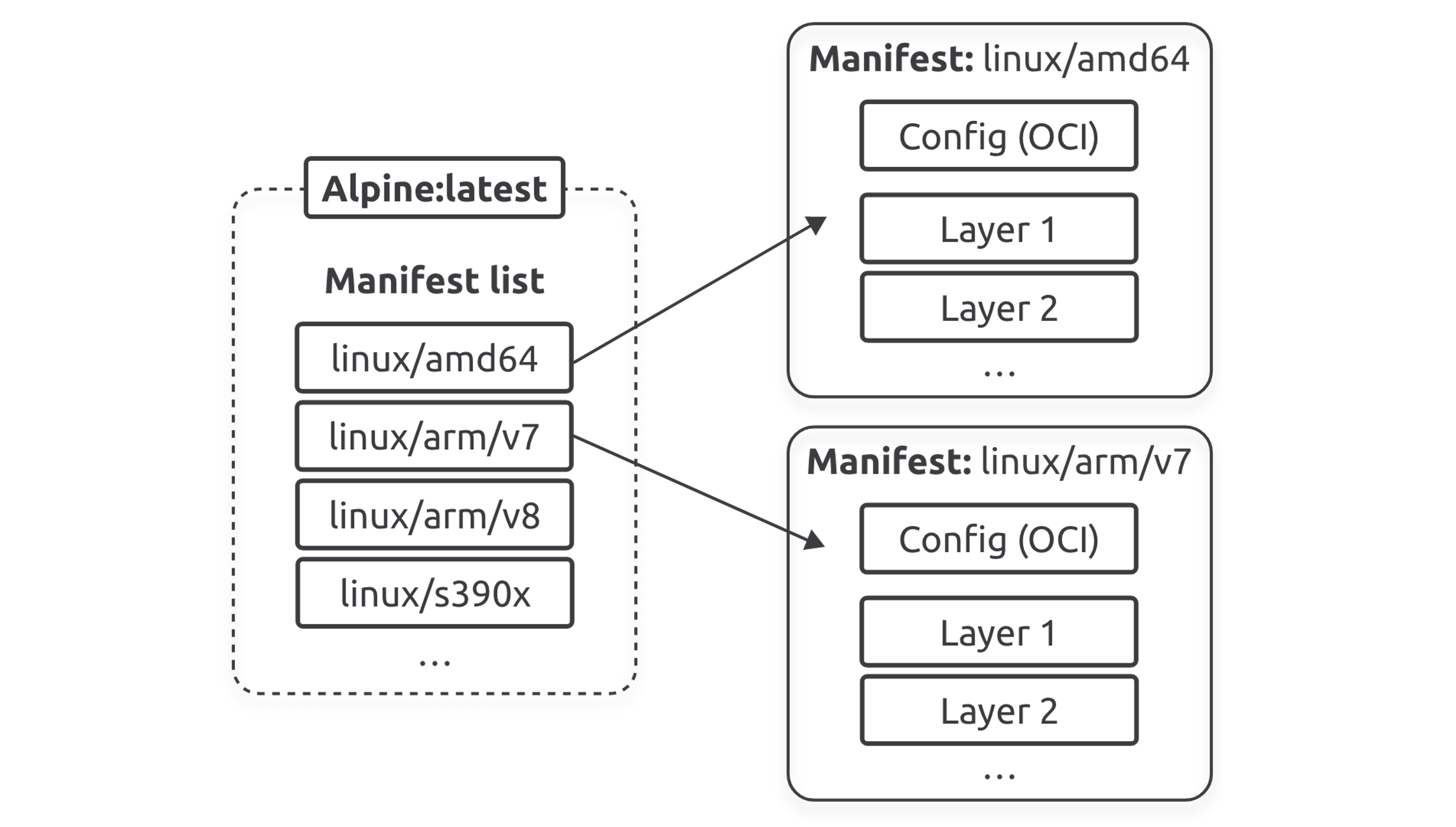
The Workflow: When you docker pull, the Docker Engine checks your local CPU architecture, looks at the Registry's Manifest List, and automatically pulls the correct binary for your system.
Creating Multi-Arch Images with Buildx
- Emulation (QEMU): Slow, runs target architecture in a VM.
- Build Cloud: Uses native cloud hardware; significantly faster and provides a shared cache for teams.
Security: Vulnerability Scanning
Docker Scout is the current industry standard for supply chain security, replacing legacy scanning tools.
- Quickview:
docker scout quickviewgives an instant risk assessment. - CVES:
docker scout cvesprovides deep analysis and remediation advice (e.g., "Upgrade base image from Python 3.11-alpine to 3.14-alpine"). - Policy Evaluation: Can block images from being pushed if they contain critical vulnerabilities.
Maintenance and Deletion
Removing Images (rmi)
Use docker rmi to remove images by Name, ID, or Digest.
- Dangling Images: Images with no tags (result of a new build using an existing tag). Clean them using docker image prune.
- Shared Layers: Docker won't delete the actual layer files until the last image referencing them is removed.
Bulk Deletion
To purge all local images (use with extreme caution):
Note: The -f (force) flag should be avoided if possible. Forcing deletion of an image in use by a container creates a "dangling" image state where the tag is removed but the data remains.
Managing the Lifecycle
- List Images:
docker image ls(ordocker images). Use--digeststo see SHA hashes. - Remove Image:
docker rmi <ID_or_Name>.- Docker won't delete a layer if it's still being used by another image.
- You cannot delete an image used by a running (or stopped) container.
- Cleanup:
docker image pruneremoves "dangling" images (images with no tags).docker system prune -ais the "nuclear" option to clean all unused images.