🐳 The Definitive Guide to Basic Docker Commands
1. docker version (The Handshake)
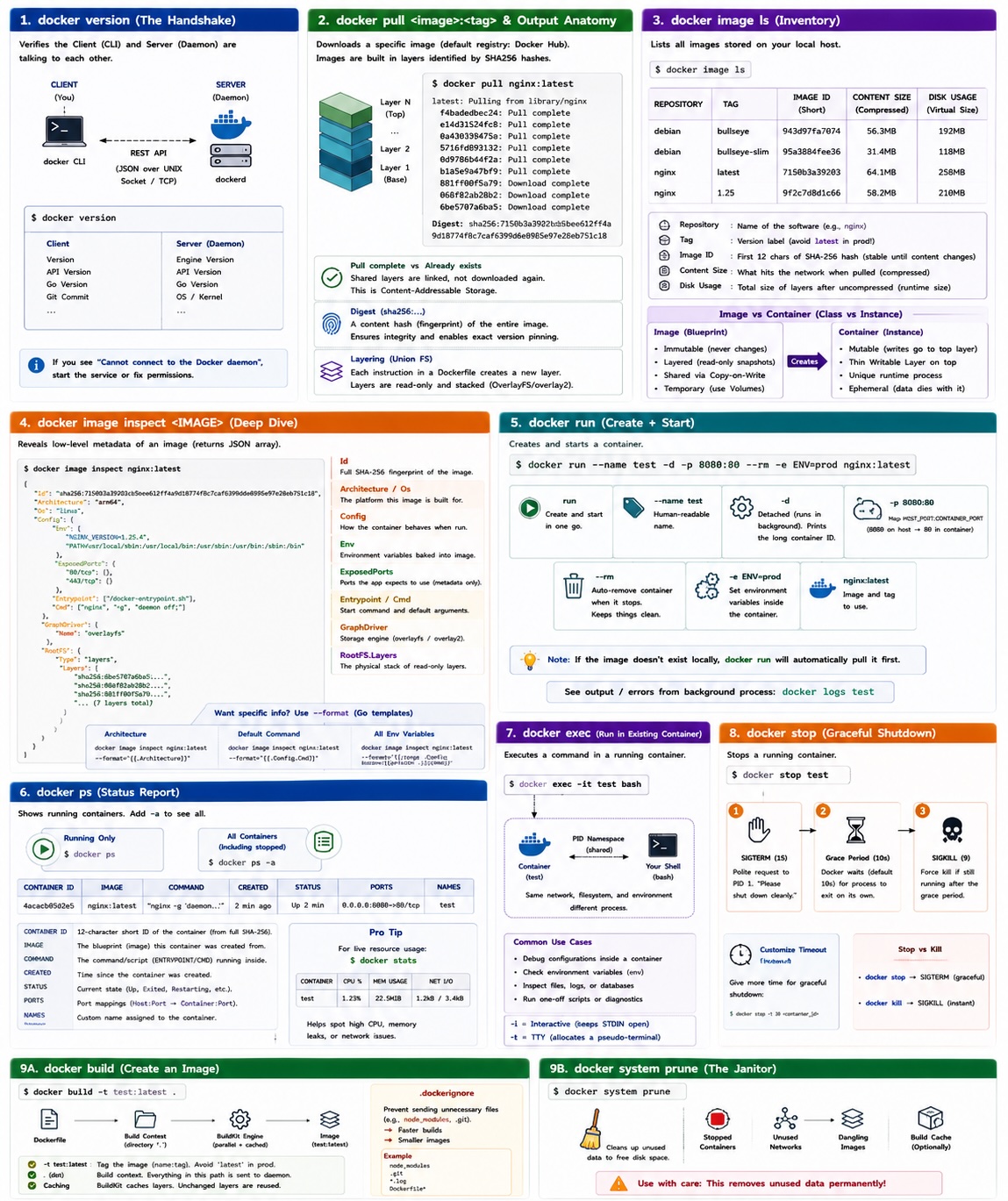
Docker operates on a Client-Server architecture. This command is the best way to verify that both sides of the "brain" are talking to each other.
- Client: The CLI tool (the "messenger") that receives your commands.
- Server (Daemon/Engine): The
dockerdprocess (the "worker") that manages images, containers, and volumes.
The command displays the version information for both the Client and the Server (Daemon).
A typical Docker installation installs the client and the engine on the same machine and configures them to talk to each other.
Use this to verify that the Docker Engine is running and to check for API compatibility.
"Cannot connect to the Docker daemon,"
If you see "Cannot connect to the Docker daemon," it usually means the service isn't started or your user lacks permissions.
docker pull <image>:<tag> & The Output Anatomy
Downloads a specific version of an image from a registry (defaulting to Docker Hub).
Docker doesn't just store files; it stores layers identified by SHA256 hashes. If two images share the same base layer (like a specific Ubuntu version), Docker only stores it once.
- Layers: Images are downloaded in chunks (layers). This allows for caching and faster downloads.
- Immutability: Each layer is read-only and identified by a SHA256 hash.
>> docker pull nginx:latest


latest: Pulling from library/nginx
f4badedbec24: Pull complete
e14d31524fc8: Pull complete
0a43e039475a: Pull complete
5716fd893132: Pull complete
0d9786b44f2a: Pull complete
b1a5e9a47bf9: Pull complete
881ff00f5a79: Pull complete
068f82ab28b2: Download complete
6be5707a6ba5: Download complete
Digest: sha256:7150b3a39203cb5bee612ff4a9d18774f8c7caf6399d6e8985e97e28eb751c18
- (The Hashes): These represent individual layers.
- Pull complete vs Already exists: If you pulled a layer earlier for another image and the current shares the same base OS layer, Docker won't download it again. It just "links" to the existing one on your disk. This is Content-Addressable Storage.
- The Digest is a mathematical fingerprint of the content it is a "content hash." Even if a developer pushes a new image with the same tag (like
latest), the Digest will change, allowing you to pin specific versions for absolute stability.
Layering
Docker images use a Union File System (UnionFS).
| Feature | Description |
|---|---|
| Layer Sharing | If two images use the same base OS, they share those layers on disk. |
| Copy-on-Write | When a container starts, it adds a thin "Writable Layer" on top of the read-only image layers. |
| Digest | The sha256 fingerprint ensures the image hasn't been tampered with. |
docker image ls (The Inventory)
Formally docker images.
Lists all images currently stored on your local host.
docker image ls


IMAGE                               ID             DISK USAGE   CONTENT SIZE   EXTRA
debian:bullseye                     943d97fa7074        192MB         56.3MB
debian:bullseye-slim                95a3884fee36        118MB         31.4MB
ghcr.io/orbstack/dmigrate-agent:1   e59e7a5dfee1       9.65MB         2.85MB
nginx:latest                        7150b3a39203        258MB         64.1MB
- Image: The
<image>:<tag>tells you what the software is and which version you have.- Repository: The name of the software (e.g.,
nginx,python). - Tag: The version label. Avoid using
latestin production—it's a moving target!
- Repository: The name of the software (e.g.,
- ID: It’s the first 12 characters of the SHA-256 hash. Can rename an image, but the ID stays the same until the content changes.
- Content Size (Compressed): The "Transport Size." This is what hits your network bandwidth when you run
docker pull. - Disk Usage (Virtual Size): The "Runtime Size." The total size of all layers once they are uncompressed by the storage driver.
docker image inspect
It reveals the low-level metadata of an image—everything from how it was built to what it expects when it starts. It returns a JSON array containing every configuration detail.
- Id: The full SHA-256 fingerprint. This is the "true" ID of the image.
- Architecture: "arm64": (e.g.,
arm64vsamd64) An amd64 image would fail to run on an Arm processor. - Os: "linux": The kernel the image expects.
- Config : This section tells Docker how to behave when you run docker run.
- Env: A list of environment variables baked into the image. Notice NGINX_VERSION. These are available to the application inside.
- ExposedPorts: Metadata indicating which ports the app expects to use. It does not actually open the port on your host (you still need
-p). - Entrypoint: The primary instruction that starts the application.
- Cmd: The default arguments passed to the entrypoint.
- GraphDriver: "overlayfs": This is the storage engine. Overlay2 is the modern standard that manages how layers are "stacked" on top of each other.
- RootFS.Layers: This is the actual physical stack. You see 7 hashes here, which means the Dockerfile that built this had roughly 7 instructions (like RUN, COPY, ADD) that modified the filesystem.
Find specific info
docker image inspect returns a JSON array. To find specific values without scrolling, use the --format flag (Go templates).
```
# Get only the Architecture
docker image inspect <ID> --format=' { {.Architecture}}'

# Get the default Command/Args
docker image inspect <ID> --format='{ {.Config.Cmd}}'

# List all Environment Variables
docker image inspect <ID> --format='{ {range .Config.Env}}{ {println .}}{ {end}}'
```
docker run
It handles create and start in one motion.
run: creates and starts the container in one go.--name test: assigns a human-readable name to the container.-d: runs the container in the background and prints the long ID. When you run a container in Detached Mode (-d), Docker's way of saying "Mission accomplished" is to hand you the unique, 64-character SHA-256 hash that identifies that specific running instance.-p <host>:<container>: maps HOST_PORT:CONTAINER_PORT (for e.g 8080:80 maps port 8080 on your Host to port 80 inside the Container.)<image>:<tag>: The image and tag to use for the container.--rm:(Added Standard) Automatically removes the container's writable layer when it stops. Excellent for keeping your environment clean.--env/-e: Injects environment variables.
💡 Note
If you don't have the image locally, docker run will automatically perform a docker pull before starting. It checks your local storage first, then hits the Registry.
After running a container in detached mode to see what's happening, use the docker logs test to See the output/errors from the background process.
docker ps (The Status Report)
Formally docker container ls.
This command is your Container Inventory. While docker ps only shows you what is currently "alive" and running, adding the -a (or --all) flag reveals the "ghosts" of containers past—those that have finished their job or been stopped.
docker ps: Lists only running containers.docker ps -a: Lists all containers, including those that have exited.docker stats: Shows a live stream of CPU, memory, and network usage—vital for spotting "leaky" apps.
CONTAINER ID   IMAGE                 COMMAND                  CREATED       STATUS        PORTS                                         NAMES
2ecc2fef08f2   study-saathi-mkdocs   "mkdocs serve --dev-…"   2 weeks ago   Up 27 hours   0.0.0.0:8000->8000/tcp, [::]:8000->8000/tcp   mkdocs_live
CONTAINER ID: the 12-character "Short ID".IMAGE: the blueprint this container was born from.COMMAND: the script that Nginx runs to start up.CREATED: the wall-clock time since you ran docker run.STATUS: the container statusPORTS: ports being listened to.NAMES: custom name assigned.
docker exec
Runs a process in an EXISTING container. Docker uses the Linux PID Namespace to "inject" your process into the same isolated environment where container is running. Both processes share the same network and filesystem, but they are separate processes.
-i(Interactive): Keeps STDIN open.-t(TTY): Allocates a pseudo-terminal (makes it look like a real shell).
Common usecase
- Debugging: Check if configuration files are correctly loaded.
- Environment Check: Run env to see if your variables passed through correctly.
- Logs/DBs: Manually trigger a script or check a local database inside the container.
docker stop oe docker kill , docker rm
To stop the running container. It follows a two-step process:
-
The Polite Request (SIGTERM): Docker sends a "Signal 15" (Termination) to the main process (PID 1) inside the container. It’s saying, "Hey, wrap up your work, save your files, and close your connections."
-
The Grace Period: Docker waits (default is 10 seconds) for the process to exit on its own.
-
The Forceful End (SIGKILL): If the container is still running after 10 seconds, Docker sends a "Signal 9" (Kill). This is the digital equivalent of pulling the power cord.
Customizing the Shutdown
Sometimes 10 seconds isn't enough (e.g., a heavy database saving a large state). You can override the timer:
```bash
    # Give the container 30 seconds to shut down gracefully
    docker stop -t 30 <container_id>
```
When a container stops, the process (PID 1) dies, but the Writable Layer (where you might have saved files during an exec session) remains on your hard drive. To truly get rid of it, you must Remove it (docker rm).
docker stop vs docker kill
docker stop: Sends aSIGTERM. The app gets a 10-second grace period to save state and close connections.docker kill: Sends aSIGKILL. The app is terminated instantly by the kernel. No grace period.
docker build
Transforms a Dockerfile into an image using BuildKit (the modern default). BuildKit is Docker’s modern build engine. It’s highly parallel and much faster than the old builder.
build: The command to transform a Dockerfile into an Image.-t test:latest: Tag the image. If you don't provide this, your image will be "nameless" (dangling) and hard to find..(The Dot): This is the Build Context. Everything in the context path is sent to the Docker Daemon.- Caching: BuildKit caches layers. If you haven't changed a line in your Dockerfile, that layer won't be rebuilt, making subsequent builds near-instant.
.dockerignore
Use a .dockerignore file to prevent sending large, unnecessary files (like node_modules or .git) to the daemon. This makes builds faster and images smaller.
docker system prune (The Janitor)
New Addition: Essential for health. Docker can eat up disk space quickly with unused layers and stopped containers.